Cybersecurity Basics: Daily Habits That Protect Your Personal Data
Personal data protection is less about buying expensive tools and more about repeating a few disciplined habits every day. In technologie informatyczne, the strongest defenses are often simple: pause before clicking, update promptly, use unique credentials, and limit what you share. This guide explains how to protect personal data from hackers and cyber attacks in realistic situations, including email, phones, home Wi-Fi, online accounts, and public networks.
Understand What Attackers Actually Want
Hackers rarely target one person for a dramatic reason. Automated systems collect credentials, financial details, identity documents, location data, and access to trusted accounts. Once an attacker has a reused password, they may try it on email, banking, shopping, and social platforms. Stolen email access can then reset other accounts, making one weak password a route to several services.
Common attacks include phishing messages that imitate banks or delivery companies, fake login pages, malicious attachments, unsafe downloads, account takeover, and data exposed through old accounts. The goal is often speed and automation, so habits that add friction—such as checking a sender carefully or approving a login request—can stop many attacks before they begin.
Build a Stronger Sign-In Routine
Passwords should be long, unique, and difficult to connect to personal details. Avoid names, birthdays, sports teams, and common phrases. A password manager can generate and store complex passwords, so you only need to remember one strong master password. If a password manager is not an option yet, create a memorable passphrase made of unrelated words and keep it private.
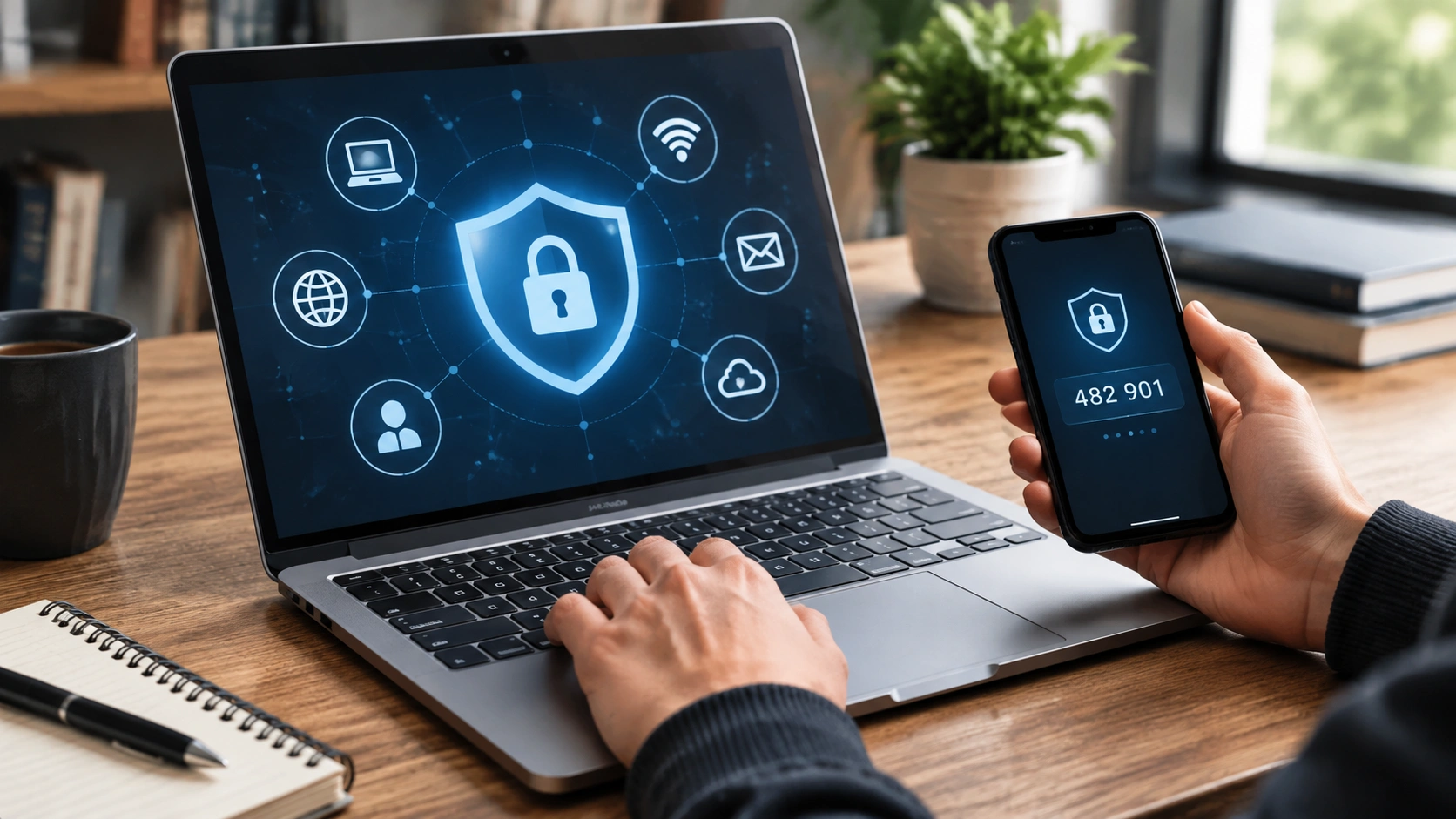
Enable multi-factor authentication wherever it is available, especially for email, cloud storage, banking, and social media. Authentication apps or security keys provide stronger protection than SMS codes, but even a text message code is better than a password alone. Never approve an unexpected sign-in prompt; it may be an attacker testing stolen credentials.
Use your browser or password manager to check for reused or compromised passwords. Change any password that appears in a breach, and prioritize accounts that can reset access to other services. Your primary email account deserves the strongest protection because it can unlock the rest of your digital life.
Handle Email and Messages with Care
Phishing works by creating urgency: an unpaid invoice, a locked account, a missed delivery, or a prize that expires soon. Slow down. Open the official website or app directly instead of using links in the message. Verify phone numbers through official directories rather than the number shown in the email.
Inspect sender addresses carefully. Attackers often use lookalike domains, unusual hyphens, or public email accounts pretending to represent a company. Be cautious with unexpected attachments, especially invoices, résumés, compressed files, and documents that ask you to enable macros or sign in.
Even messages from known contacts can be unsafe if their account has been compromised. If a message feels strange, confirm through another channel before clicking, paying, or sharing information. Reporting phishing to your email provider helps improve filtering for future messages.
Keep Devices and Software Updated
Updates repair security flaws that attackers already know how to exploit. Turn on automatic updates for your phone, computer, browser, router, and important apps. Restart devices when updates require it, and do not delay critical browser or operating system patches for weeks.
Remove software you no longer use and avoid installing unofficial tools or cracked applications. Download apps from official stores or vendor websites, and review permissions carefully. A flashlight app does not need access to contacts, microphone, or background location. On phones, disable unnecessary permissions and reset them when an app behaves unexpectedly.
Use reputable security software and keep it current. Enable the device firewall, disable remote desktop services you do not need, and lock the screen when you step away. These basic controls reduce opportunities for both remote attacks and physical access.
Protect Data on Networks
Home Wi-Fi should use a strong, unique router password and current firmware. Change the default administrator credentials, disable WPS, and use WPA2 or WPA3 encryption. Create a separate guest network for visitors and smart devices when possible.
Public Wi-Fi is convenient but unpredictable. Avoid entering passwords or financial details on networks you do not control. If you must use one, prefer your phone’s mobile hotspot or a trusted virtual private network. A VPN can encrypt traffic between your device and the VPN service, but it does not make you anonymous or protect against unsafe websites.
Turn off automatic Wi-Fi joining and Bluetooth discovery when they are not needed. Before connecting, verify the network name with staff, because attackers can create convincing hotspots with similar names.
Reduce Your Exposure Before an Attack
Share less personal information by default. Avoid posting full birth dates, home addresses, travel plans, or identity documents on public profiles. Review old accounts and delete those you no longer use; forgotten services are often breached and rarely monitored.
Limit app permissions, disable ad tracking where available, and use separate email addresses for important accounts and low-risk signups. Regularly review active sessions, connected applications, recovery email, and phone numbers. Sign out of devices you sold or no longer use.
Back up important files using the 3-2-1 approach when practical: three copies, on two types of storage, with one copy kept offline or offsite. Test restoration occasionally. Offline backups are especially valuable against ransomware because attackers cannot encrypt copies they cannot reach.
Know What to Do When Something Goes Wrong
If you click a suspicious link, disconnect from the network if you entered credentials on an unsafe page, then change the affected password from another device. Use a password manager to update any reused passwords. Enable multi-factor authentication and review recovery settings.
Contact your bank if financial details may be exposed, and report unauthorized transactions quickly. Watch for unusual password reset emails, forwarding rules, or unfamiliar connected apps. If malware is suspected, run a security scan and consider professional help before continuing sensitive work.
Report identity theft to the relevant national authority and keep records of messages, transactions, and actions taken. Acting quickly limits damage, but avoid panic-driven decisions such as paying unknown callers or downloading unverified “cleanup” tools.
Make Protection Automatic
The most reliable security habits are the ones that fit into normal routines. Enable automatic updates, use a password manager, turn on multi-factor authentication, back up important data, and pause before responding to urgent messages. Review account activity once a month and remove access you no longer need.
Security is not about achieving perfection. It is about making attacks slower, riskier, and easier to notice. Small, consistent choices protect personal data from hackers and cyber attacks while keeping everyday technology convenient and usable.